
Screenshots
App details
- Version
- 6.2.15.0 | 6.2.14.0 | 6.2.10.0 | 6.2.9.0...
- Size
- 17.54 MB
- Updated
- January 31, 2025
- Requires
- Windows 7
- Language
- English | German | French
- License
- Free
- Developer
- Jürgen Rathlev
- Category
- Windows OS
SoftPas in:
This product is also available in the following languages:
About Personal Backup
Download Personal Backup – free Windows backup tool for secure data protection
Overview
Personal Backup is a lightweight, free backup utility designed exclusively for Windows environments. Developed by Jürgen Rathlev, this tool falls under the “Development & IT” category with a focus on “Backup & Cloud Storage.” Since its inclusion in software catalogs in 2012, it has amassed over 6,800 downloads, reflecting a steady demand among users who need a no‑frills, reliable solution for protecting files, folders, and system settings. The current release, Intego Personal Backup 2013, continues to support Windows 2000 and all later versions, making it compatible with legacy systems as well as modern PCs. Multilingual support—English, German, and French—ensures a broader audience can navigate the interface with ease. Its modest installer size distinguishes it from bulkier competitors, which often require hundreds of megabytes. Despite its simplicity, Personal Backup incorporates essential features such as scheduled backups, incremental copying, and compression, allowing users to safeguard critical data without sacrificing disk space. The software’s free licensing model eliminates cost barriers, positioning it as an attractive option for home users, small businesses, and IT professionals seeking a dependable backup layer without complex configuration or subscription fees. Whether you’re looking to back up documents, media libraries, or configuration files, Personal Backup offers a straightforward, secure approach that integrates seamlessly into the Windows ecosystem.
Key Features
- Scheduled Backups: Define daily, weekly, or monthly backup cycles to automate data protection.
- Incremental Copying: Only new or changed files are added after the initial full backup, conserving storage space.
- Compression Engine: Built‑in ZIP compression reduces the size of backup archives while preserving data integrity.
- Multi‑Language Interface: Available in English, German, and French for broader accessibility.
- Selective Folder Backup: Choose specific directories or file types to include, giving you granular control.
- Restore Wizard: Simple step‑by‑step restoration process for quick recovery of lost or corrupted files.
- Low System Footprint: Minimal RAM and CPU usage ensures the program runs unobtrusively in the background.
- Portable Mode: Option to run from a USB stick without full installation, ideal for on‑the‑go technicians.
- Secure File Handling: Uses checksums to verify backup integrity, reducing the risk of silent corruption.
- Free Licensing: No hidden fees, premium tiers, or time‑limited trials—full feature set is available at zero cost.
Installation, Usage & Compatibility
Step‑by‑Step Installation Guide
1. Download the Installer: Click the “Download” button on the official page to retrieve the .exe file. The file size is under 5 MB, making the download quick even on slower connections.
2. Run as Administrator: Right‑click the installer and select “Run as administrator” to ensure the program can write to required system folders.
3. Follow the Wizard: The setup wizard walks you through language selection, destination folder (default is C:\Program Files\Personal Backup), and shortcut creation.
4. Complete Installation: Click “Finish” to launch the application immediately or close the wizard to start it later from the Start menu.
5. Initial Configuration: On first run, you’ll be prompted to create a backup set—choose the folders you wish to protect and specify a destination drive or network share.
How to Use Personal Backup Effectively
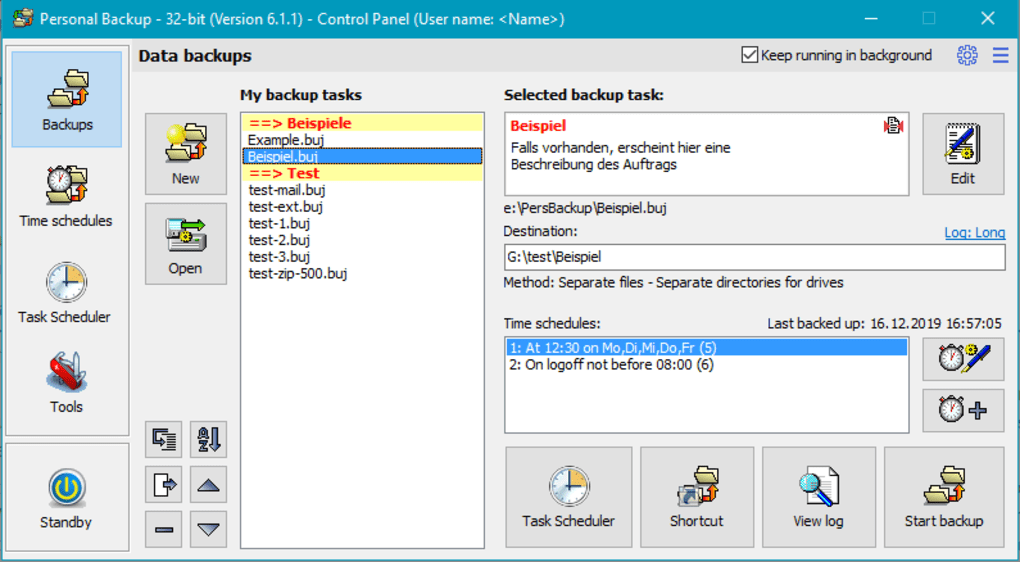
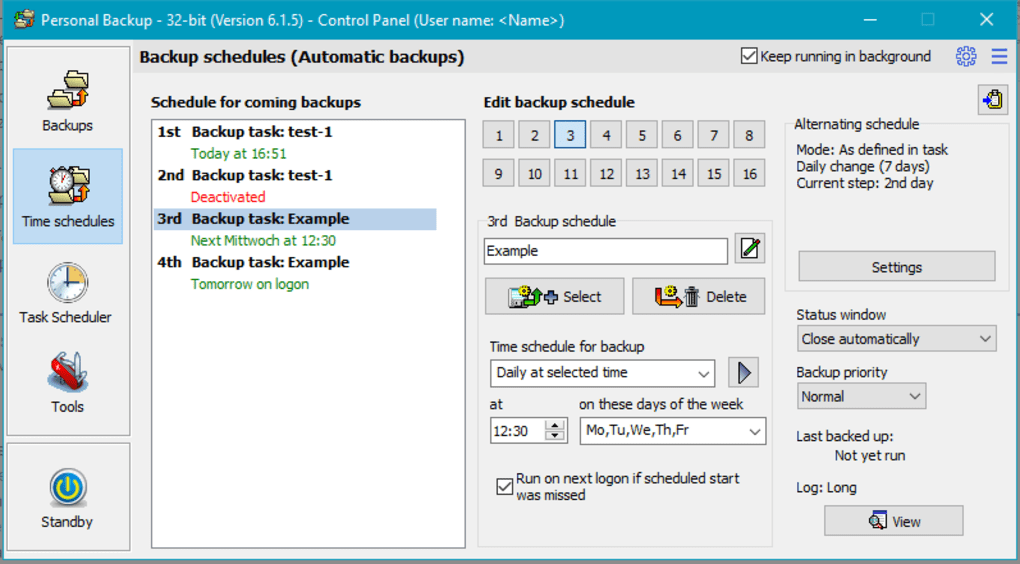
After installation, the main dashboard presents three primary tabs: Backup Sets, Schedule, and Logs. Begin by clicking “Create New Set,” then browse to the folders you want to include. Assign a descriptive name (e.g., “Work Documents”) and select a backup destination—local external drive, network share, or a secondary internal partition. Enable “Compress Backup” to shrink archive size, and tick “Run Incremental After First Full” for efficient subsequent backups. In the Schedule tab, set the frequency and preferred time (e.g., 02:00 AM) to ensure backups occur automatically without manual intervention. The Logs tab provides real‑time status, error messages, and verification checksums, allowing you to confirm that each backup completed successfully. For restoration, simply open the “Restore” wizard, navigate to the desired backup file, and select the files or folders you wish to recover. The intuitive interface requires no advanced technical knowledge, making it suitable for both novice users and seasoned IT staff.
Compatibility: Personal Backup runs on Windows 2000, XP, Vista, 7, 8, 8.1, 10, and 11. It supports both 32‑bit and 64‑bit architectures, and the installer automatically detects the appropriate version during setup. Because the program relies on native Windows APIs, no additional runtimes (such as .NET or Java) are required, further reducing potential compatibility issues. Users with legacy hardware can still benefit from the program’s modest resource consumption, while modern systems enjoy swift backup cycles thanks to the optimized compression engine.
Pros, Cons & Frequently Asked Questions
Pros
- Completely free with no hidden costs.
- Lightweight installer and low runtime footprint.
- Supports Windows 2000 through Windows 11.
- Easy-to-use interface suitable for beginners.
- Incremental backups and compression save storage space.
- Multilingual support expands user accessibility.
- Portable mode allows use from USB without installation.
Cons
- No cloud integration (e.g., Dropbox, OneDrive) out of the box.
- Lacks advanced encryption for backup files.
- Interface looks dated compared to modern backup suites.
- No built‑in email or notification alerts.
- Limited reporting—no detailed graphical statistics.
Frequently Asked Questions
Is Personal Backup truly free, or are there hidden fees?
Personal Backup is 100 % free. All features are available without a trial period, subscription, or in‑app purchase. The developer provides it as a community‑focused utility.
Can I back up to an external cloud service?
Out of the box, Personal Backup only supports local drives, network shares, and removable media. However, you can map a cloud storage folder (e.g., OneDrive) as a network drive and point the backup destination there.
Does the software encrypt my backup files?
Encryption is not built into Personal Backup. If encryption is required, you can compress the backup archive with a password‑protected ZIP utility after the backup completes.
How much disk space does a typical backup consume?
Disk usage depends on the size of the source data and the compression level selected. Incremental backups dramatically reduce additional space, often adding only a few megabytes per day for modest data changes.
Is there a way to restore individual files instead of the whole backup?
Yes. The Restore wizard lets you browse the backup archive and select specific files or folders for recovery, making it easy to retrieve only the items you need.
Conclusion & Call to Action
Personal Backup delivers exactly what its name promises: a straightforward, reliable way to protect your Windows data without the overhead of pricey commercial suites. Its free licensing, low resource consumption, and support for a wide range of Windows versions make it an excellent choice for users who value simplicity over feature bloat. While the lack of native cloud sync and encryption may steer power users toward more advanced solutions, the core functionality—scheduled, incremental, and compressed backups—covers the essential needs of most home and small‑business environments. If you’re looking for a trustworthy backup utility that you can install in seconds and set to run automatically, Personal Backup fits the bill perfectly. Click the download button below to get the latest version, configure your first backup set, and enjoy peace of mind knowing your files are safely archived.
Guides & Tutorials
How to install Personal Backup
- Click the Download button above.
- Once redirected, accept the terms and click Install.
- Wait for the Personal Backup download to finish on your device.
How to use Personal Backup
This software is primarily used for its core features described above. Open the app after installation to explore its capabilities.
User Reviews
No reviews yet. Be the first to share your experience.
You may also like
more
Llama 2
Free-to-use large language model As the new addition to Meta’s arsenal of langua...

NotebookLM
Revolutionizing the note-taking and idea-generation process NotebookLM is an exp...

Github co pilot
AI-inspired software development and coding platform GitHub Copilot is a browser...

Google Gemma
Google’s lightweight AI models Introducing Google Gemma , a family of cutting-ed...

AI Image Enlarger
A free app for Windows, by ai-image-larger. AI Image Enlarger is a free software...

DALL E
AI-driven text-to-image transformation engine DALL·E is a free graphic and desig...